Ever tried accessing session variables in Web Service methods? It won't work unless you add a little property in the WebMethod header of the functions.
For example, the basic hello world:
[WebMethod(EnableSession=true)]
public void HelloWorld()
{
...
}
Just add the statement EnableSession=true and you'll be able to access session variables found normally in aspx pages like the following sample.
string userid = Session["userid"].ToString();
Showing posts with label c#. Show all posts
Showing posts with label c#. Show all posts
Saturday, April 17, 2010

Thursday, April 15, 2010
ASP.NET C# Set Value to Password Textbox in Code Behind
If ever you've tried setting value in code-behind to a textbox with TextMode property set to "Password", you would notice it doesn't display the masked text on the page. This is simply the way it is for security purposes, but there is a workaround so you can show the user there is actually text in the textbox.
Here is the snippet:
txt1.Text = "sample_password";
if (txt1.TextMode == TextBoxMode.Password)
{
txt1.Attributes.Add("value", txt1.Text);
}
Just set the same text value to the javascript attribute "value" and you're done.
Here is the snippet:
txt1.Text = "sample_password";
if (txt1.TextMode == TextBoxMode.Password)
{
txt1.Attributes.Add("value", txt1.Text);
}
Just set the same text value to the javascript attribute "value" and you're done.
Thursday, February 25, 2010
ASP.NET C# OnEnter event in TextBox
Here is a workaround for ASP.NET C# if you want an event that triggers on pressing the "Enter" key on your keyboard while still inside a textbox.
First the javascript snippet:
if (event.which || event.keyCode) {
if ((event.which == 13) || (event.keyCode == 13)) {
document.getElementById('btnClick').click();
return false;
}
}
else {
return true;
};
It just captures the "Enter" key press (which is 13) and then clicks the corresponding button to trigger its event. So you just place this script on the textbox's onkeydown attribute which I'll show in just a sec.
protected void Page_Load(object sender, EventArgs e)
{
if (!IsPostBack)
{
txtBox.Attributes.Add("onkeydown", "if(event.which || event.keyCode){if ((event.which == 13) || (event.keyCode == 13)) {document.getElementById('" + btnClick.UniqueID + "').click();return false;}} else {return true}; ");
}
}
Just add the attribute on the Page_Load event and you're done.
Check this link for more keycodes: http://www.cambiaresearch.com/c4/702b8cd1-e5b0-42e6-83ac-25f0306e3e25/Javascript-Char-Codes-Key-Codes.aspx
-k
First the javascript snippet:
if (event.which || event.keyCode) {
if ((event.which == 13) || (event.keyCode == 13)) {
document.getElementById('btnClick').click();
return false;
}
}
else {
return true;
};
It just captures the "Enter" key press (which is 13) and then clicks the corresponding button to trigger its event. So you just place this script on the textbox's onkeydown attribute which I'll show in just a sec.
protected void Page_Load(object sender, EventArgs e)
{
if (!IsPostBack)
{
txtBox.Attributes.Add("onkeydown", "if(event.which || event.keyCode){if ((event.which == 13) || (event.keyCode == 13)) {document.getElementById('" + btnClick.UniqueID + "').click();return false;}} else {return true}; ");
}
}
Just add the attribute on the Page_Load event and you're done.
Check this link for more keycodes: http://www.cambiaresearch.com/c4/702b8cd1-e5b0-42e6-83ac-25f0306e3e25/Javascript-Char-Codes-Key-Codes.aspx
-k
ASP.NET C# : Working With Cookies
If enabled on client browsers, cookies are a great way to store bits of data for use by websites like remembering the login state of users who doesn't want to retype their username and password everytime they visit the site.
Here are the most common functions you can use to manipulate cookies in ASP.NET (C#):
SETCOOKIE
public void SetCookie(string name, string value, int expiration)
{
HttpCookie cookie;
if (Request.Cookies[name] == null) cookie = new HttpCookie(name);
else cookie = Request.Cookies[name];
cookie.Value = value;
cookie.Expires = DateTime.Now.AddDays(expiration);
Response.Cookies.Add(cookie);
}
SetCookie can be used to add a new cookie or overwrite an exisiting one in your cookie collection. Simply pass the name and value pair and the expiration (in days) for how long you want that cookie to be in use by your website. In the following code, we store the username "abby" in our collection for 1 day.
SetCookie("username", "abby", 1);
Take note though that if you use the same cookie name "username" again to set another value, it will overwrite the previous one.
GETCOOKIE
public string GetCookie(string name)
{
HttpCookie cookie = Request.Cookies[name];
if (cookie == null) return "";
else return cookie.Value;
}
GetCookie can be used to retrieve the value of the cookie by passing the name. In the following code, we get the value of the cookie considering it has not yet expired.
string str = GetCookie("username");
DELETECOOKIE
public void DeleteCookie(string name)
{
HttpCookie cookie;
if (Request.Cookies[name] == null) return;
else cookie = Request.Cookies[name];
cookie.Expires = DateTime.Now.AddDays(-1);
Response.Cookies.Add(cookie);
}
DeleteCookie can be used to delete a particular cookie from the cookie collection by passing the name. Notice the -1 in the AddDays? That will simply delete the value in the physical cookie file. In the following code, we delete the "username" cookie.
DeleteCookie("username");
CLEARCOOKIES
public void ClearCookies()
{
int cookieCount = Request.Cookies.Count;
for (int i = 0; i < cookieCount; i++)
{
HttpCookie cookie = Request.Cookies[i];
cookie.Expires = DateTime.Now.AddDays(-1);
Response.Cookies.Add(cookie);
}
}
ClearCookies can be used to delete all cookies in the cookie collection. We also used the -1 in the AddDays here but used a loop to delete each one in the collection. In the following code, it will delete the physical cookie file of your website.
ClearCookies();
And that's it for cookies.
-k
Here are the most common functions you can use to manipulate cookies in ASP.NET (C#):
SETCOOKIE
public void SetCookie(string name, string value, int expiration)
{
HttpCookie cookie;
if (Request.Cookies[name] == null) cookie = new HttpCookie(name);
else cookie = Request.Cookies[name];
cookie.Value = value;
cookie.Expires = DateTime.Now.AddDays(expiration);
Response.Cookies.Add(cookie);
}
SetCookie can be used to add a new cookie or overwrite an exisiting one in your cookie collection. Simply pass the name and value pair and the expiration (in days) for how long you want that cookie to be in use by your website. In the following code, we store the username "abby" in our collection for 1 day.
SetCookie("username", "abby", 1);
Take note though that if you use the same cookie name "username" again to set another value, it will overwrite the previous one.
GETCOOKIE
public string GetCookie(string name)
{
HttpCookie cookie = Request.Cookies[name];
if (cookie == null) return "";
else return cookie.Value;
}
GetCookie can be used to retrieve the value of the cookie by passing the name. In the following code, we get the value of the cookie considering it has not yet expired.
string str = GetCookie("username");
DELETECOOKIE
public void DeleteCookie(string name)
{
HttpCookie cookie;
if (Request.Cookies[name] == null) return;
else cookie = Request.Cookies[name];
cookie.Expires = DateTime.Now.AddDays(-1);
Response.Cookies.Add(cookie);
}
DeleteCookie can be used to delete a particular cookie from the cookie collection by passing the name. Notice the -1 in the AddDays? That will simply delete the value in the physical cookie file. In the following code, we delete the "username" cookie.
DeleteCookie("username");
CLEARCOOKIES
public void ClearCookies()
{
int cookieCount = Request.Cookies.Count;
for (int i = 0; i < cookieCount; i++)
{
HttpCookie cookie = Request.Cookies[i];
cookie.Expires = DateTime.Now.AddDays(-1);
Response.Cookies.Add(cookie);
}
}
ClearCookies can be used to delete all cookies in the cookie collection. We also used the -1 in the AddDays here but used a loop to delete each one in the collection. In the following code, it will delete the physical cookie file of your website.
ClearCookies();
And that's it for cookies.
-k
Sunday, January 31, 2010
ASP.NET Server tag was not well formed
TIP: ASP.NET C# Expression Language with Javascript
Here's a tip on how to use C# bind code inline with javascript events, first let's use a LinkButton for example:
<asp:LinkButton ID="lnkBtn" runat="server" OnClick="lnkBtn_Click" OnClientClick='<%# "document.getElementById(\"txtHtmlText\").value = " + Eval("id") + ";" %>' />
Imagine this LinkButton is inside a binded control like Gridview or Repeater, etc., now look at the OnClientClick attribute. Remember to be careful with single and double quotes.
1. Use single quotes to contain the whole expresion.
OnClientClick=' ... '
2. Enclose inner javascript statements with double quotes and concatenate it with .NET bind statements (like Eval()) with the "+" symbol.
"document.getElementById(\"txtHtmlText\").value = " + Eval("id") + ";"
3. Use escaped double quotes (the one with the slash) if ever you'll use double quotes inside another one.
getElementById(\"txtHtmlText\")
So the next time you get the error "Server tag was not well formed" just remember these 3 tips.
-k
Here's a tip on how to use C# bind code inline with javascript events, first let's use a LinkButton for example:
<asp:LinkButton ID="lnkBtn" runat="server" OnClick="lnkBtn_Click" OnClientClick='<%# "document.getElementById(\"txtHtmlText\").value = " + Eval("id") + ";" %>' />
Imagine this LinkButton is inside a binded control like Gridview or Repeater, etc., now look at the OnClientClick attribute. Remember to be careful with single and double quotes.
1. Use single quotes to contain the whole expresion.
OnClientClick=' ... '
2. Enclose inner javascript statements with double quotes and concatenate it with .NET bind statements (like Eval()) with the "+" symbol.
"document.getElementById(\"txtHtmlText\").value = " + Eval("id") + ";"
3. Use escaped double quotes (the one with the slash) if ever you'll use double quotes inside another one.
getElementById(\"txtHtmlText\")
So the next time you get the error "Server tag was not well formed" just remember these 3 tips.
-k
Thursday, January 28, 2010
Change Web Service name in ASP.NET
For example you have a Web Service named AAAWebService
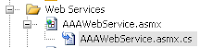
... and then run it, you would get an error like this...

The solution is to right click on your web service asmx file and click view markup.


And you want to change its name to let's say BBBWebService. If you open your code and change it like this..
public class BBBWebService : System.Web.Services.WebService
{
}

The solution is to right click on your web service asmx file and click view markup.

Change the name here and you're done.
<%@ WebService Language="C#" CodeBehind="AAAWebService.asmx.cs" Class="Web_Services.BBBWebService" >
-k
ASP.NET C# Refresh page from code behind
To refresh your page you may use the javascript function:
window.location.reload();
For example you can use that on the OnClientClick attribute of an ASP.NET button:
<asp:button ID="btnRefresh" OnClick="btnRefresh_Click" runat="server" Text="REFRESH"
OnClientClick="window.location.reload();" />
The code above will work fine, but if let's say you have some other server-side logic you want to run on the code for btnRefresh_Click, it won't be executed because the page would already be refreshed by then.
So to run your server-side code, first remove the OnClientClick attribute on the asp button tag above. Then place the following code inside your button click event:
protected void btnRefresh_Click(object sender, EventArgs e)
{
//Your logic here...
Page.Response.Redirect(HttpContext.Current.Request.Url.ToString(), true);
}
We simply redirect the page to its current url and that does the trick.
-k
window.location.reload();
For example you can use that on the OnClientClick attribute of an ASP.NET button:
<asp:button ID="btnRefresh" OnClick="btnRefresh_Click" runat="server" Text="REFRESH"
OnClientClick="window.location.reload();" />
The code above will work fine, but if let's say you have some other server-side logic you want to run on the code for btnRefresh_Click, it won't be executed because the page would already be refreshed by then.
So to run your server-side code, first remove the OnClientClick attribute on the asp button tag above. Then place the following code inside your button click event:
protected void btnRefresh_Click(object sender, EventArgs e)
{
//Your logic here...
Page.Response.Redirect(HttpContext.Current.Request.Url.ToString(), true);
}
We simply redirect the page to its current url and that does the trick.
-k
Wednesday, January 27, 2010
Javascript Window.Open() in .NET
Here's an example on how to popup a new window using javascript in .NET. First we'll use a simple button as the trigger source for the popup.
<asp:Button ID="btnPopup" runat="server" />
Then on the page load in the code behind, add an onclick attribute to the button.
protected void Page_Load(object sender, EventArgs e)
{
btnPopup.Attributes.Add("onclick", "window.open('http://" + Page.Request.Url.Authority + "/TestPage.aspx','Test','status,toolbar,location,menubar,directories,resizable,scrollbars,width=400,height=400')");
}
The Page.Request.Url.Authority in the code above will retrieve the root url of your site. Then just add the name of the aspx file to popup after the forward slash (if it is within another directory, just add the directory name before the aspx file, and so forth).
To explain the javascript part, window.open() accepts 3 parameters: the url of the site to popup, the window name (not title, the title should be in the head part of the new page, so make sure it doesn't have spaces), and window features.
Here's some of the commonly used window features:
status:

toolbar:

location:

menubar:

directories:

resizable: window can be resized

scrollbars:

width: the width of the window in pixels
height: the height of the window in pixels
To use these features simply add them to the list like this:
"window.open
('http://www.testpage.com','Test','status,toolbar,location,menubar,directories,resizable,scrollbars,width=400,height=400')"

If not then simply omit them:
"window.open('http://www.testpage.com','Test','width=400,height=400')"

That's it, one note though, make sure that the aspx page in the url exists or you'll get an error.
-k
<asp:Button ID="btnPopup" runat="server" />
Then on the page load in the code behind, add an onclick attribute to the button.
protected void Page_Load(object sender, EventArgs e)
{
btnPopup.Attributes.Add("onclick", "window.open('http://" + Page.Request.Url.Authority + "/TestPage.aspx','Test','status,toolbar,location,menubar,directories,resizable,scrollbars,width=400,height=400')");
}
The Page.Request.Url.Authority in the code above will retrieve the root url of your site. Then just add the name of the aspx file to popup after the forward slash (if it is within another directory, just add the directory name before the aspx file, and so forth).
To explain the javascript part, window.open() accepts 3 parameters: the url of the site to popup, the window name (not title, the title should be in the head part of the new page, so make sure it doesn't have spaces), and window features.
Here's some of the commonly used window features:
status:

toolbar:

location:

menubar:

directories:

resizable: window can be resized

scrollbars:

width: the width of the window in pixels
height: the height of the window in pixels
To use these features simply add them to the list like this:
"window.open
('http://www.testpage.com','Test','status,toolbar,location,menubar,directories,resizable,scrollbars,width=400,height=400')"

If not then simply omit them:
"window.open('http://www.testpage.com','Test','width=400,height=400')"

That's it, one note though, make sure that the aspx page in the url exists or you'll get an error.
-k
Friday, January 22, 2010
How to use events like onblur, onfocus, etc. for ASP.NET Texbox and other controls
Have you ever wondered if you can use other event attributes for some ASP.NET controls, say an ASP.NET Textbox?

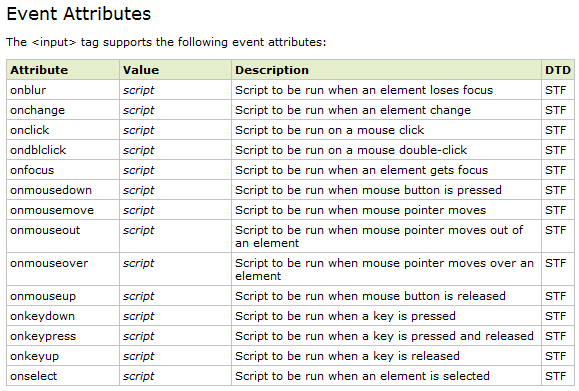
Source: w3schools
A workaround is to create an ASP.NET Button and place it inside a hidden div:
<div style="display: none;">
<asp:Button ID="btnTextBoxEventHandler" runat="server"
OnClick="btnTextBoxEventHandler_Click" />
</div>
And here's the markup for the textbox, just a regular one:
<asp:Textbox ID="txt1" runat="server" />
Now on your page onload event, add an attribute to your textbox:
protected void Page_Load(object sender, EventArgs e)
{
txt1.Attributes.Add("onblur", this.Page.ClientScript.GetPostBackEventReference(this.btnTextBoxEventHandler, ""));
}
Then of course, the event handler for the button:
protected void btnTextBoxEventHandler_Click(object sender, EventArgs e)
{
//Place code here for onblur..
}
Now place the code you want to trigger (when the textbox loses focus) inside the button event and see what happens. Try experimenting with other event attributes and ASP.NET control combinations too.
-k

When upon checking, all you see that's available is a TextChanged event. And you know that the html input tag can support other events like:

A workaround is to create an ASP.NET Button and place it inside a hidden div:
<div style="display: none;">
<asp:Button ID="btnTextBoxEventHandler" runat="server"
OnClick="btnTextBoxEventHandler_Click" />
</div>
And here's the markup for the textbox, just a regular one:
<asp:Textbox ID="txt1" runat="server" />
Now on your page onload event, add an attribute to your textbox:
protected void Page_Load(object sender, EventArgs e)
{
txt1.Attributes.Add("onblur", this.Page.ClientScript.GetPostBackEventReference(this.btnTextBoxEventHandler, ""));
}
Then of course, the event handler for the button:
protected void btnTextBoxEventHandler_Click(object sender, EventArgs e)
{
//Place code here for onblur..
}
Now place the code you want to trigger (when the textbox loses focus) inside the button event and see what happens. Try experimenting with other event attributes and ASP.NET control combinations too.
-k
Thursday, January 21, 2010
Visual Studio Line Numbers
Ever wondered why errors in Visual Studio show you line numbers where it occured yet upon checking back on your code you found none? That is because by default, on installation of Visual Studio, line numbers are disabled. To enable it simply go to menu then tools then options.

Once the options window pop up, expand on Text Editor and select the language you want to show line numbers and simply click the checkbox "Line numbers".

You can do this to other languages you want, better if you do it on all.

That's it, the only thing I've been wondering is why Microsoft opted to disable it by default when we all know that line numbers are important for debugging..
-k

Once the options window pop up, expand on Text Editor and select the language you want to show line numbers and simply click the checkbox "Line numbers".

You can do this to other languages you want, better if you do it on all.

That's it, the only thing I've been wondering is why Microsoft opted to disable it by default when we all know that line numbers are important for debugging..
-k
Wednesday, January 20, 2010
ASP.NET Gridview Paging and Sorting with AJAX
To enable paging and sorting of our gridviews with ajax, we must first include the prerequisites of any ajax-enabled asp.net website, the script manager and the update panel.
We place the scriptmanager inside of our form (note the enable partial rendering attribute, it must be set to "true" to enable asynchronous postbacks):
<asp:ScriptManager ID="sm" runat="server" EnablePartialRendering="true" />
Then enclose our gridview with the update panel.
<asp:UpdatePanel ID="up" runat="server">
<ContentTemplate>
<asp:GridView ID="gv" runat="server"
AllowSorting="true" AllowPaging="true" PageSize="10"
OnSorting="gv_Sorting" OnPageIndexChanging="gv_PageIndexChanging">
</asp:GridView>
</ContentTemplate>
</asp:UpdatePanel>
Notice we set both AllowSorting and AllowPaging to true, then add PageSize for the number of items to be shown per page. Next we'll add the code behind for the sorting and paging events.
Let's start first with the sorting part.
We'll assume in this next snippet that we're getting our data from the database or whatsoever then assign it to a DataSet, then finally bind the dataset to our GridView.
private void BindGridView()
{
//Get data from there..
//Assign to dataset here..
DataSet ds = TheData;
//Bind dataset to gridview
gv.DataSource = ds;
gv.DataBind();
//We persist DataTable from our DataSet through session.
Session["sess_table"] = ds.Tables[0];
}
To explain the code above, this function can be placed anywhere in your code behind, it's where you load data into your gridview (*note: imagine TheData already has our data from the database or any other source, loading data to a dataset will be in another lesson). What's new here is the assigning of the DataTable from our DataSet through session. We need that to preserve our data asynchronously.
Then the next step will be to add this other function, again it can be placed anywhere in the code behind.
private string GetSortDirection(string column)
{
//By default, set the sort direction to ascending.
string sortDirection = "ASC";
//Retrieve the last column that was sorted.
string sortExpression = ViewState["SortExpression"] as string;
if (sortExpression != null)
{
//Check if the same column is being sorted.
//Otherwise, the default value can be returned.
if (sortExpression == column)
{
string lastDirection = ViewState["SortDirection"] as string;
if ((lastDirection != null) && (lastDirection == "ASC"))
{
sortDirection = "DESC";
}
}
}
//Save new values in ViewState.
ViewState["SortDirection"] = sortDirection;
ViewState["SortExpression"] = column;
return sortDirection;
}
The code above was taken directly from the msdn website, what it does is just return Ascending or Descending depending on the gridview column header that was clicked.
And finally the sorting event handler..
protected void gv_Sorting(object sender, GridViewSortEventArgs e)
{
//Retrieve the DataTable from the session object.
DataTable dt = Session["sess_table"] as DataTable;
if (dt != null)
{
//Sort the table.
dt.DefaultView.Sort = e.SortExpression + " " + GetSortDirection(e.SortExpression);
//Bind the sorted table to the gridview.
gv.DataSource = Session["sess_table"];
gv.DataBind();
//Update the UpdatePanel or the changes won't show.
up.Update();
}
}
Okay we're already halfway there, next is the paging part, this is really short and simple compared to the sorting one.
protected void gv_PageIndexChanging(object sender, GridViewPageEventArgs e)
{
gv.PageIndex = e.NewPageIndex;
BindGridView();
upTransactions.Update();
}
3 lines and that's it. Okay to explain: the first line just sets the new page index to the gridview's PageIndex attribute. Next we use the function we created earlier to bind our data to the gridview again (that's assuming the imaginary code, remember?). And then finally update our UpdatePanel to reflect the changes.
...And thanks, I hope you learned something from this post, or remembered something you forgot.
-k
We place the scriptmanager inside of our form (note the enable partial rendering attribute, it must be set to "true" to enable asynchronous postbacks):
<asp:ScriptManager ID="sm" runat="server" EnablePartialRendering="true" />
Then enclose our gridview with the update panel.
<asp:UpdatePanel ID="up" runat="server">
<ContentTemplate>
<asp:GridView ID="gv" runat="server"
AllowSorting="true" AllowPaging="true" PageSize="10"
OnSorting="gv_Sorting" OnPageIndexChanging="gv_PageIndexChanging">
</asp:GridView>
</ContentTemplate>
</asp:UpdatePanel>
Notice we set both AllowSorting and AllowPaging to true, then add PageSize for the number of items to be shown per page. Next we'll add the code behind for the sorting and paging events.
Let's start first with the sorting part.
We'll assume in this next snippet that we're getting our data from the database or whatsoever then assign it to a DataSet, then finally bind the dataset to our GridView.
private void BindGridView()
{
//Get data from there..
//Assign to dataset here..
DataSet ds = TheData;
//Bind dataset to gridview
gv.DataSource = ds;
gv.DataBind();
//We persist DataTable from our DataSet through session.
Session["sess_table"] = ds.Tables[0];
}
To explain the code above, this function can be placed anywhere in your code behind, it's where you load data into your gridview (*note: imagine TheData already has our data from the database or any other source, loading data to a dataset will be in another lesson). What's new here is the assigning of the DataTable from our DataSet through session. We need that to preserve our data asynchronously.
Then the next step will be to add this other function, again it can be placed anywhere in the code behind.
private string GetSortDirection(string column)
{
//By default, set the sort direction to ascending.
string sortDirection = "ASC";
//Retrieve the last column that was sorted.
string sortExpression = ViewState["SortExpression"] as string;
if (sortExpression != null)
{
//Check if the same column is being sorted.
//Otherwise, the default value can be returned.
if (sortExpression == column)
{
string lastDirection = ViewState["SortDirection"] as string;
if ((lastDirection != null) && (lastDirection == "ASC"))
{
sortDirection = "DESC";
}
}
}
//Save new values in ViewState.
ViewState["SortDirection"] = sortDirection;
ViewState["SortExpression"] = column;
return sortDirection;
}
The code above was taken directly from the msdn website, what it does is just return Ascending or Descending depending on the gridview column header that was clicked.
And finally the sorting event handler..
protected void gv_Sorting(object sender, GridViewSortEventArgs e)
{
//Retrieve the DataTable from the session object.
DataTable dt = Session["sess_table"] as DataTable;
if (dt != null)
{
//Sort the table.
dt.DefaultView.Sort = e.SortExpression + " " + GetSortDirection(e.SortExpression);
//Bind the sorted table to the gridview.
gv.DataSource = Session["sess_table"];
gv.DataBind();
//Update the UpdatePanel or the changes won't show.
up.Update();
}
}
Okay we're already halfway there, next is the paging part, this is really short and simple compared to the sorting one.
protected void gv_PageIndexChanging(object sender, GridViewPageEventArgs e)
{
gv.PageIndex = e.NewPageIndex;
BindGridView();
upTransactions.Update();
}
3 lines and that's it. Okay to explain: the first line just sets the new page index to the gridview's PageIndex attribute. Next we use the function we created earlier to bind our data to the gridview again (that's assuming the imaginary code, remember?). And then finally update our UpdatePanel to reflect the changes.
...And thanks, I hope you learned something from this post, or remembered something you forgot.
-k
Subscribe to:
Posts (Atom)


