This is somewhat similar to the previous post Get client cpu id with javascript, so the client still needs to enable ActiveX components on his browser. Read more on the said post for details.
Ok if you're done reading, you'll notice we simply change the script to this:
<script type="text/javascript">
var macAddress = "";
var ipAddress = "";
var computerName = "";
var wmi = GetObject("winmgmts:{impersonationLevel=impersonate}");
e = new Enumerator(wmi.ExecQuery("SELECT * FROM Win32_NetworkAdapterConfiguration WHERE IPEnabled = True"));
for(; !e.atEnd(); e.moveNext()) {
var s = e.item();
macAddress = s.MACAddress;
ipAddress = s.IPAddress(0);
computerName = s.DNSHostName;
}
</script>
Instead of Win32_Processor, here we'll access Win32_NetworkAdapterConfiguration to read network related details like the MAC Address, IP Address and the computer name.
Then we can simply use textboxes to display that information or whatever you like.
<input type="text" id="txtMACAdress" />
<input type="text" id="txtIPAdress" />
<input type="text" id="txtComputerName" />
<script type="text/javascript">
document.getElementById("txtMACAdress").value = unescape(macAddress);
document.getElementById("txtIPAdress").value = unescape(ipAddress);
document.getElementById("txtComputerName").value = unescape(computerName);
</script>
And just like before, make sure to place the declarations snippet above this script for it to display the values properly. Now the client can see his/her own MAC and IP Addresses.
Read more about the Win32_NetworkAdapterConfiguration object here http://msdn.microsoft.com/en-us/library/aa394217(VS.85).aspx
-k
Showing posts with label html. Show all posts
Showing posts with label html. Show all posts
Thursday, February 11, 2010

Wednesday, February 10, 2010
ASP.NET AJAX this._form is null error on javascript
If ever you encounter this sneaky error on your ASP.NET AJAX-Enabled websites (you would know it when you see the this._form is null javascript error message or simply if your controls don't cause postbacks anymore) the culprit is the javascript declaration found on the head tag in the html page.
If you have declared it like this:
<script src="scripts/main.js" type="text/javascript" />
Simply change it to this:
<script src="scripts/main.js" type="text/javascript"></script>
And problem is solved.
-k
If you have declared it like this:
<script src="scripts/main.js" type="text/javascript" />
Simply change it to this:
<script src="scripts/main.js" type="text/javascript"></script>
And problem is solved.
-k
Friday, January 22, 2010
How to use events like onblur, onfocus, etc. for ASP.NET Texbox and other controls
Have you ever wondered if you can use other event attributes for some ASP.NET controls, say an ASP.NET Textbox?

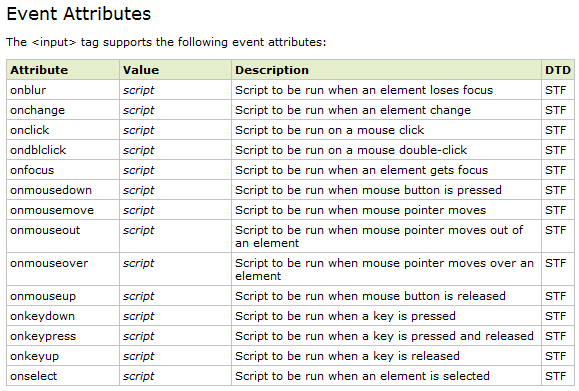
Source: w3schools
A workaround is to create an ASP.NET Button and place it inside a hidden div:
<div style="display: none;">
<asp:Button ID="btnTextBoxEventHandler" runat="server"
OnClick="btnTextBoxEventHandler_Click" />
</div>
And here's the markup for the textbox, just a regular one:
<asp:Textbox ID="txt1" runat="server" />
Now on your page onload event, add an attribute to your textbox:
protected void Page_Load(object sender, EventArgs e)
{
txt1.Attributes.Add("onblur", this.Page.ClientScript.GetPostBackEventReference(this.btnTextBoxEventHandler, ""));
}
Then of course, the event handler for the button:
protected void btnTextBoxEventHandler_Click(object sender, EventArgs e)
{
//Place code here for onblur..
}
Now place the code you want to trigger (when the textbox loses focus) inside the button event and see what happens. Try experimenting with other event attributes and ASP.NET control combinations too.
-k

When upon checking, all you see that's available is a TextChanged event. And you know that the html input tag can support other events like:

A workaround is to create an ASP.NET Button and place it inside a hidden div:
<div style="display: none;">
<asp:Button ID="btnTextBoxEventHandler" runat="server"
OnClick="btnTextBoxEventHandler_Click" />
</div>
And here's the markup for the textbox, just a regular one:
<asp:Textbox ID="txt1" runat="server" />
Now on your page onload event, add an attribute to your textbox:
protected void Page_Load(object sender, EventArgs e)
{
txt1.Attributes.Add("onblur", this.Page.ClientScript.GetPostBackEventReference(this.btnTextBoxEventHandler, ""));
}
Then of course, the event handler for the button:
protected void btnTextBoxEventHandler_Click(object sender, EventArgs e)
{
//Place code here for onblur..
}
Now place the code you want to trigger (when the textbox loses focus) inside the button event and see what happens. Try experimenting with other event attributes and ASP.NET control combinations too.
-k
Thursday, January 21, 2010
Get Client CPU ID with Javascript
For whatever purpose it may serve, here's how to get the client CPU ID through javascript. Just a warning though, this script uses ActiveX object which is disabled by default on browsers and I'm not sure if you can enable it on non-IE. So for now we'll just do it with Internet Explorer.
Go to Tools then Internet Options.

Then on the Security tab click on "Custom Level..."

Go down until you see "Initialize and script ActiveX controls not marked as safe..." and enable it then click Ok.
Now we go to the scripting part. Add this next snippet in your html page.
<script type="text/javascript">
var str = "";
var wmi = GetObject("winmgmts:{impersonationLevel=impersonate}");
e = new Enumerator(wmi.InstancesOf("Win32_Processor"));
for(; !e.atEnd(); e.moveNext()) {
var s = e.item();
str = s.ProcessorID;
}
</script>
You can add the script above anywhere on your html head or body, but if you chose to put it on the body be sure to place it anywhere above this next snippet, which just displays the CPU ID in the page.
<b>Client CPU ID : </b><span id="spanCPUID" />
<script type="text/javascript">
document.getElementById("spanCPUID").innerHTML = str;
</script>
And that's it, you should now see the client computer's cpu id when you run the page.
-k
Go to Tools then Internet Options.

Then on the Security tab click on "Custom Level..."

Go down until you see "Initialize and script ActiveX controls not marked as safe..." and enable it then click Ok.
Now we go to the scripting part. Add this next snippet in your html page.
<script type="text/javascript">
var str = "";
var wmi = GetObject("winmgmts:{impersonationLevel=impersonate}");
e = new Enumerator(wmi.InstancesOf("Win32_Processor"));
for(; !e.atEnd(); e.moveNext()) {
var s = e.item();
str = s.ProcessorID;
}
</script>
You can add the script above anywhere on your html head or body, but if you chose to put it on the body be sure to place it anywhere above this next snippet, which just displays the CPU ID in the page.
<b>Client CPU ID : </b><span id="spanCPUID" />
<script type="text/javascript">
document.getElementById("spanCPUID").innerHTML = str;
</script>
And that's it, you should now see the client computer's cpu id when you run the page.
-k
Subscribe to:
Posts (Atom)


